The mix is done. You know exactly what the chorus should look like, but you’ve still got a whole verse to get through and a second chorus that can’t just repeat the first. Put those moments on a storyboard before you spend time generating shots.
MVFlow builds an editable music video storyboard from an uploaded track and your creative direction. You can revise individual shots, compare generated takes, and compose the selected versions with the original track.
MVFlow and this blog share the same owner.
Start a music video storyboard in MVFlow.
Pick a visual idea that can evolve with the song
Play the track once and mark three moments where the picture should change. That could be the first entrance of the vocal, the first chorus, and the return after the bridge. Give the video one image you can revisit, such as a woman waiting in a laundromat at night. A repeating location helps the audience notice changes in framing, light, or action.
Here is a brief for an imagined synth-pop single with a quiet verse and a bigger chorus.
A woman waits alone in a late-night laundromat. In the verse, stay close to her hands and the rotating dryer. At the first chorus, move outside and show her through the front window. Return to that angle in the final chorus, with the room now empty. Keep the blue fluorescent interior and amber streetlight across all three sections.
Upload a track you have permission to use and open MV mode. Here’s how you could fill out the project for the laundromat video.
- In Project title, enter a working title like “Last Load.”
- Under Music genre and Emotional tone, pick the closest choices for a synth-pop track that starts subdued and opens up at the chorus.
- For Visual style, try Cinematic live action. Add a reference photo if you already know what the laundromat or the character’s outfit should look like.
- Paste the brief into Additional ideas, then generate the storyboard.
Edit the storyboard against the music
Read the plan with the track playing. If the first wide shot arrives before the chorus, adjust its timing so the reveal lands where you want it. If one planned shot asks the camera to cross the room, follow the woman, and zoom into the dryer in a few seconds, simplify the action or split it across shots.
Here’s what that structure looks like in MVFlow’s own tutorial. The example labels the verse, pre-chorus, and chorus along the music timeline. For the laundromat video, look for the boundary between the pre-chorus and chorus and place the first exterior shot there. Watch the MVFlow tutorial and finished example.
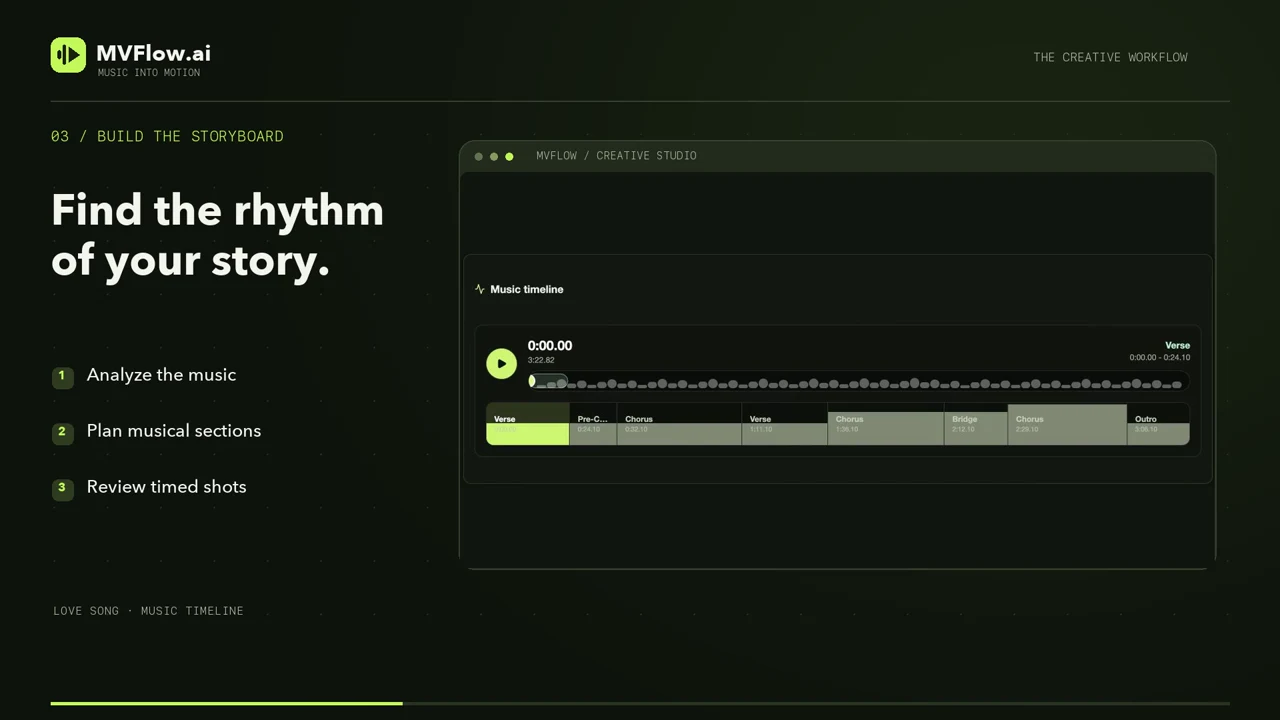
Look for continuity before rendering. Does the same jacket appear in the verse and the chorus? Is the window on the same side of the room? Apply the same character and location references to each shot where those details matter.
Render the cut that tells you the most
Render the last shot of the verse and the first shot of the chorus. Play them back to back with the track. For the laundromat video, try holding on the dryer until the chorus hits, then cut to the wide shot of the storefront. Once that reveal works, you have an angle you can return to later, when the room is empty.
Compare takes wherever a transition feels off. When the remaining shots are ready, select the versions you want and compose the full cut with the original track.